Layout
All standard Compose layout composables work in PDF rendering. Design your pages with Column, Row, Box, and the full set of layout modifiers.
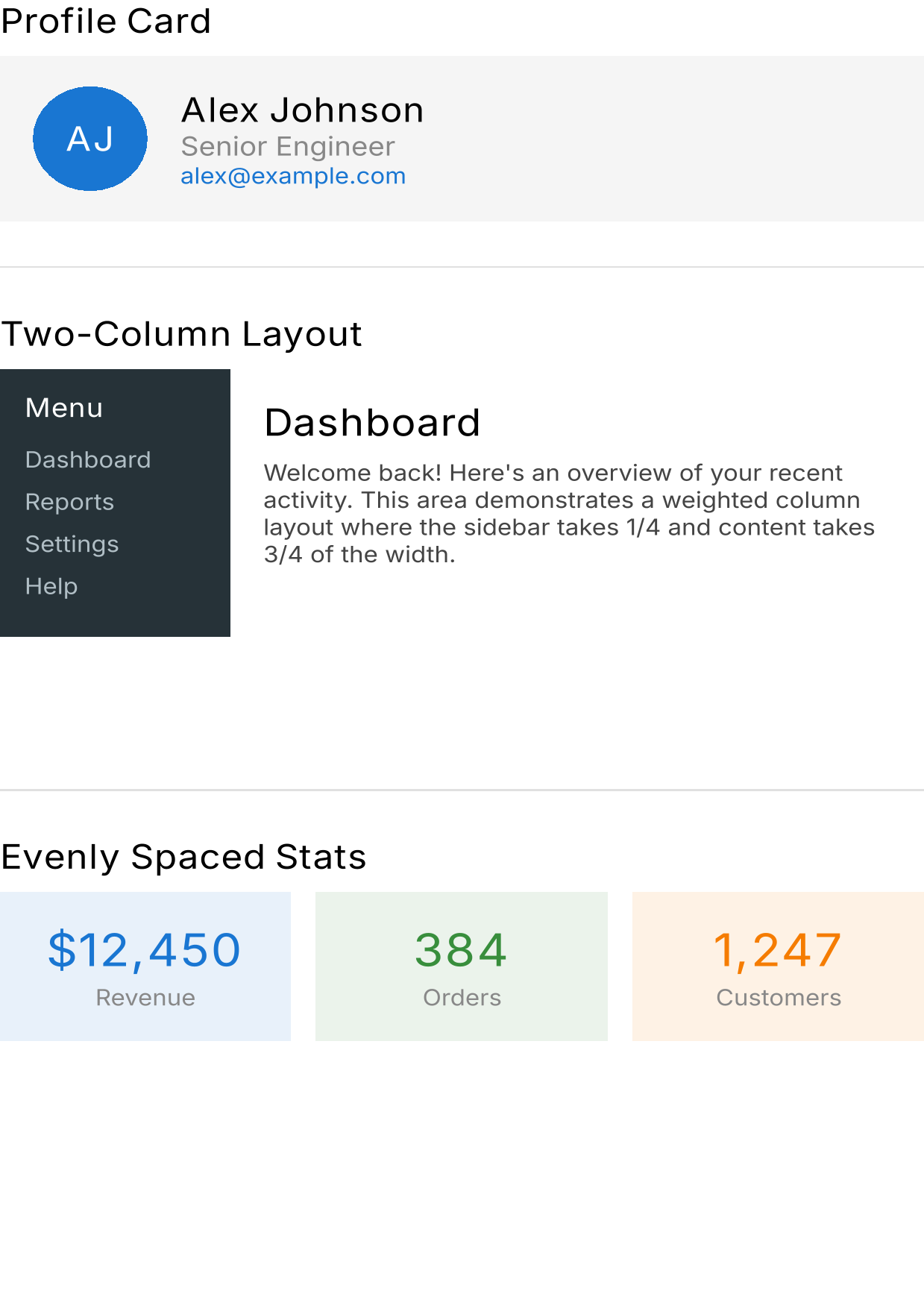 Layout example — download PDF
Column
Stack content vertically:
Column(
    Modifier.fillMaxSize().padding(24.dp),
    verticalArrangement = Arrangement.spacedBy(8.dp),
) {
    Text("First item")
    Text("Second item")
    Text("Third item")
}
Row
Arrange content horizontally:
Row(
    Modifier.fillMaxWidth(),
    horizontalArrangement = Arrangement.SpaceBetween,
    verticalAlignment = Alignment.CenterVertically,
) {
    Text("Left")
    Text("Right")
}
Weights
Distribute space proportionally:
Row(Modifier.fillMaxWidth()) {
    Box(Modifier.weight(1f).background(Color.Blue).height(40.dp))
    Box(Modifier.weight(2f).background(Color.Green).height(40.dp))
    Box(Modifier.weight(1f).background(Color.Red).height(40.dp))
}
// Results in 25% / 50% / 25% width distribution
Box
Overlay content with alignment:
Box(
    Modifier.size(200.dp).background(Color.LightGray),
    contentAlignment = Alignment.Center,
) {
    Text("Centered in box")
}
Sizing modifiers
Modifier.fillMaxSize()              // Fill entire content area
Modifier.fillMaxWidth()             // Fill width, wrap height
Modifier.fillMaxHeight()            // Fill height, wrap width
Modifier.size(100.dp)               // Fixed 100x100
Modifier.size(200.dp, 100.dp)       // Fixed 200 wide x 100 tall
Modifier.width(150.dp)              // Fixed width, wrap height
Modifier.height(80.dp)              // Fixed height, wrap width
Padding and spacing
// Uniform padding
Modifier.padding(24.dp)

// Asymmetric padding
Modifier.padding(horizontal = 16.dp, vertical = 8.dp)

// Individual sides
Modifier.padding(start = 12.dp, top = 8.dp, end = 12.dp, bottom = 16.dp)
Use Spacer for explicit gaps:
Column {
    Text("Title")
    Spacer(Modifier.height(16.dp))
    Text("Body")
    Spacer(Modifier.weight(1f))  // Fills remaining space
    Text("Footer")               // Pushed to bottom
}
Dividers
Divider()                                    // Default thin gray line
Divider(color = Color.Black, thickness = 2.dp)  // Custom
Table pattern
Compose doesn’t have a built-in table, but you can build one with Row and Column:
Column(Modifier.fillMaxWidth()) {
    // Header row
    Row(
        Modifier
            .fillMaxWidth()
            .background(Color(0xFFE3F2FD))
            .padding(horizontal = 12.dp, vertical = 8.dp),
    ) {
        Text("Name", Modifier.weight(2f), fontWeight = FontWeight.Bold)
        Text("Qty", Modifier.weight(1f), fontWeight = FontWeight.Bold, textAlign = TextAlign.End)
        Text("Price", Modifier.weight(1f), fontWeight = FontWeight.Bold, textAlign = TextAlign.End)
    }

    // Data rows
    val items = listOf("Widget" to "$12.00", "Gadget" to "$24.50")
    for ((index, item) in items.withIndex()) {
        val bg = if (index % 2 == 0) Color.White else Color(0xFFFAFAFA)
        Row(
            Modifier
                .fillMaxWidth()
                .background(bg)
                .padding(horizontal = 12.dp, vertical = 6.dp),
        ) {
            Text(item.first, Modifier.weight(2f))
            Text("1", Modifier.weight(1f), textAlign = TextAlign.End)
            Text(item.second, Modifier.weight(1f), textAlign = TextAlign.End)
        }
    }
}
Use Modifier.weight() on column cells to create consistent column widths across rows. Alternating row backgrounds (Color.White / Color(0xFFFAFAFA)) improve readability.
See also
- Shapes and Drawing – Backgrounds, borders, clips
- Example: Invoice – Tables in a real-world layout
- Example: Report – Multi-page layout with headers and footers